
Deleting a Wiki Page
WARNING
Contributing to the wiki is currently limited to Alderon Games staff and selected community members. If you are interested in contributing, please create a github account and wait for further instructions.
There are two main ways to delete a page from the wiki: via the GitHub web interface or using VSCode and Git. Both methods require a GitHub account. If you don’t have one, please create an account.
INFO
Please make sure to follow the Contributing Guidelines if you want to contribute to the wiki.
Deleting page follows similar steps to adding a new page, but with a few differences. If you need a general video tutorial, you can find one for Adding a New Wiki Page that will help you understand the general process.
Using the GitHub Web Interface
This is the simplest way to delete a page in the wiki without needing additional software. Follow these steps carefully.
Deleting an Existing Page
- Navigate to the
server-wikirepository on GitHub under theAlderon-Gamesorganization. You can find the repository here.
WARNING
Make sure you are on the develop branch before proceeding. You should delete files only from the develop branch.
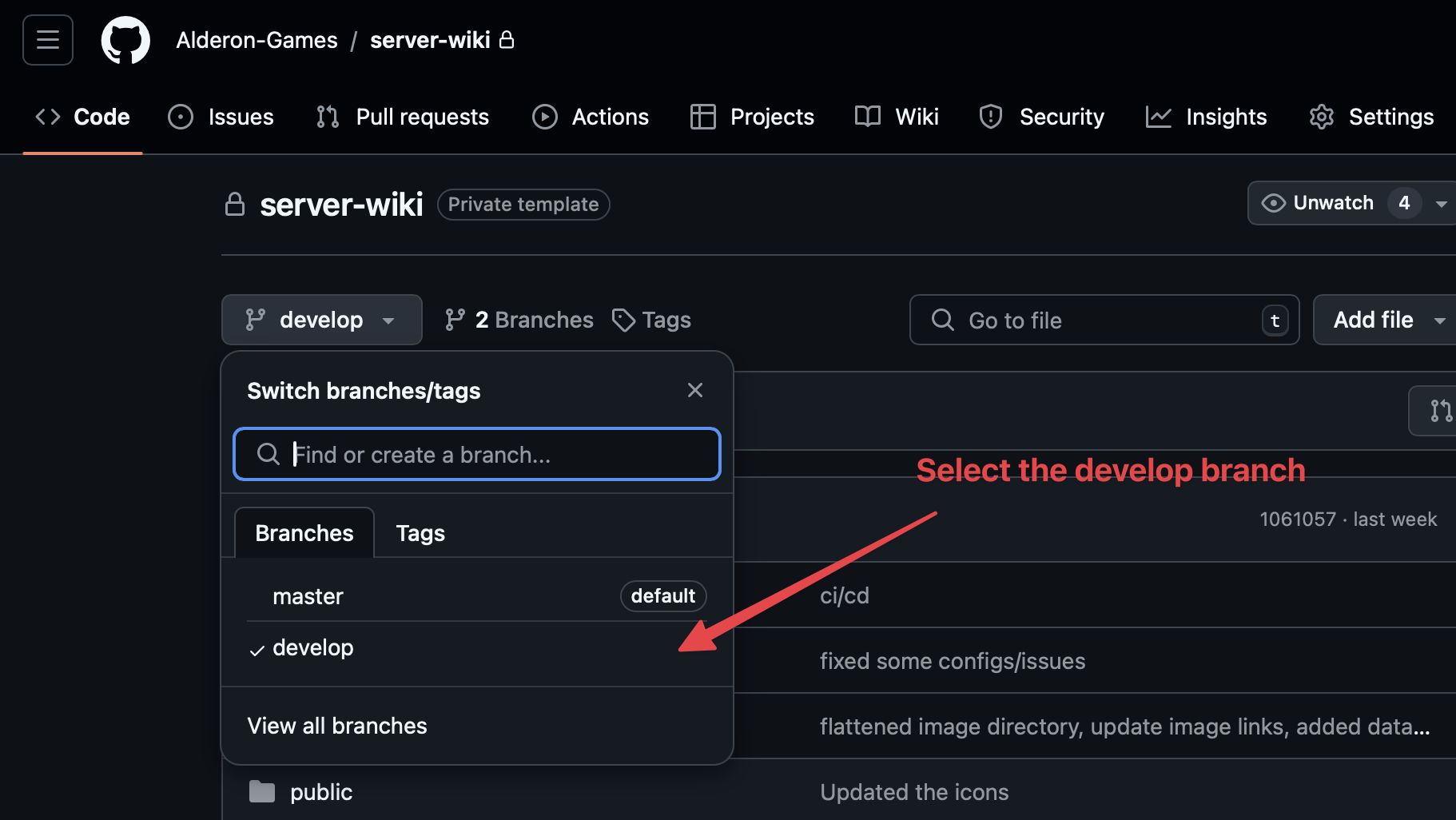
Browse the repository to locate the page you want to delete. For instance, if you need to delete the server setup guide, navigate to
guide/server-setup.md.Once you’ve found the file, click on it to open the page, then click the three dots and then
Delete fileto delete the page.
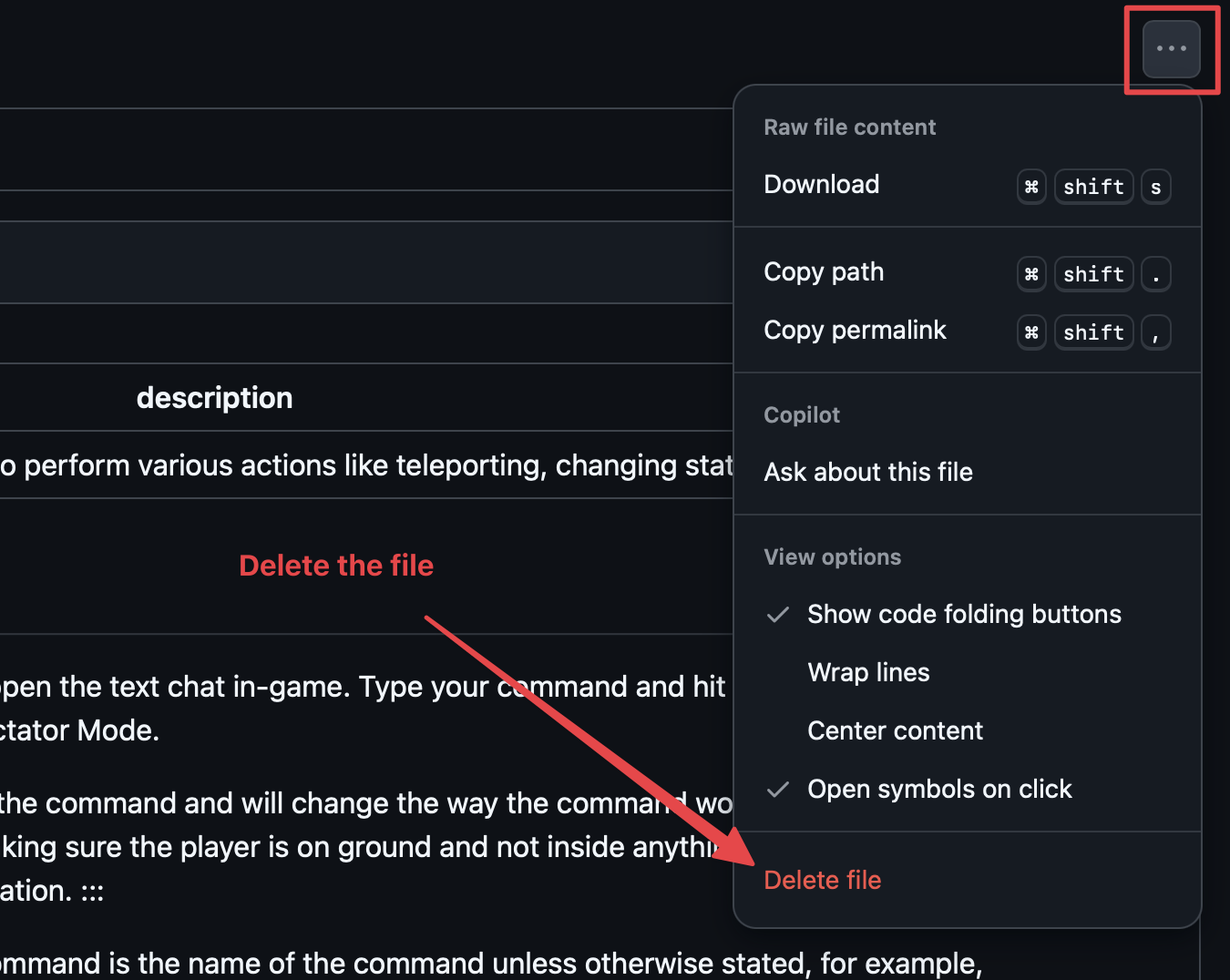
GitHub will prompt you to add a commit message. Provide a brief description, such as
Delete server setup guide. You may also add an optional description for more context if needed.Select the option to
Create a new branch for this commit and start a pull request. This will create a new branch and open a pull request for the deletion.
WARNING
Always create a new branch for changes to keep them separate from the main branch until they are reviewed and merged.
Press the
Propose changesbutton to create the pull request. This will open a new page where you can review and submit the pull request.Done! You’ve successfully deleted a wiki page using the GitHub web interface. Wait for the maintainers to review and merge your changes.
Deleting from Configuration File
If you delete a page, you may also need to remove the page from the configuration file.
Navigate to the
server-wikirepository on GitHub under theAlderon-Gamesorganization, similar to the steps above.Find the
config.jsonfile in the root directory of the repository. Click on the file to open it.Click the pencil icon in the top right to enter edit mode.
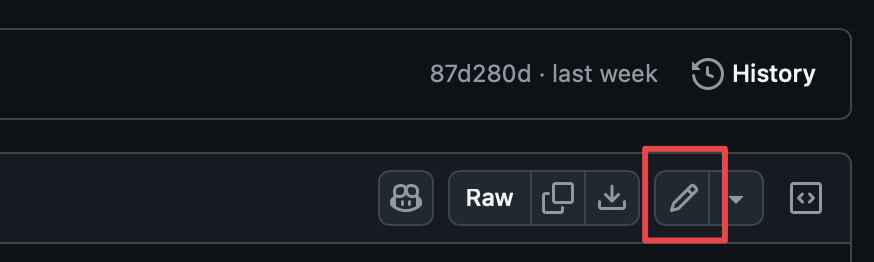
- Locate the page you deleted in the
config.jsonfile and remove the entry. For example, if you removed a page under theGuidessection, you would remove the corresponding entry from the file (in this case,Server Setup).
{
    ...
    "themeConfig": {
        ...
        "sidebar": [
            ...
            {
                "text": "Guides",
                "items": [
                    ...
-                   { "text": "Server Setup", "link": "/guide/server-setup" },
                    ...
                ]
            },
            ...
        ],
        ...
    },
    ...
}
Using VSCode and Git
In order to edit a page using VSCode, you’ll need to have VSCode and Git installed. If you don’t have these installed, download and install them first.
Then, you can follow similar steps to Adding a New Wiki Page to clone the repository and edit the markdown files locally. Make sure to push your changes to GitHub and open a pull request for review.
TIP
The only difference is that you will be deleting the file instead of adding or editing it.