
Editing an Existing Wiki Page
WARNING
Contributing to the wiki is currently limited to Alderon Games staff and selected community members. If you are interested in contributing, please create a github account and wait for further instructions.
Approved contributors can use the wiki's built-in editor after signing in, or edit through GitHub or VSCode/Git. The GitHub and VSCode methods require a GitHub account.
INFO
Please make sure to follow the Contributing Guidelines if you want to contribute to the wiki.
Editing a page follows similar steps to adding a new page, but with a few differences. If you need a general video tutorial, you can find one for Adding a New Wiki Page that will help you understand the general process.
Using the Wiki Editor
Open the published page, select Sign in to edit, and sign in with an account in the approved contributor group. Select Edit this page to load the Markdown source. You can also create a page, edit navigation (config.json), or manage images from the editor menu. Preview shows the rendered page live as you type, using the wiki's own VitePress theme; there are no separate preview links or sites, and the draft is visible only to you. Select Save to commit the proposed change to a review branch and open a pull request. The page on the public wiki changes only after a reviewer merges the pull request and the site is deployed. If a page changed or already has a different draft on your review branch, review the pull request before retrying rather than overwriting it.
Image uploads support PNG, JPEG, GIF, WebP and AVIF up to 10 MiB; SVG uploads are not supported. The media tab shows your selected image before you submit it.
Using the GitHub Web Interface
This is the simplest way to edit a page in the wiki as it doesn’t require additional software. Just follow these steps carefully.
Editing an Existing Page
- Navigate to the
server-wikirepository on GitHub under theAlderon-Gamesorganization. You can find the repository here.
WARNING
Make sure you are on the develop branch before proceeding. You should edit only from the develop branch.
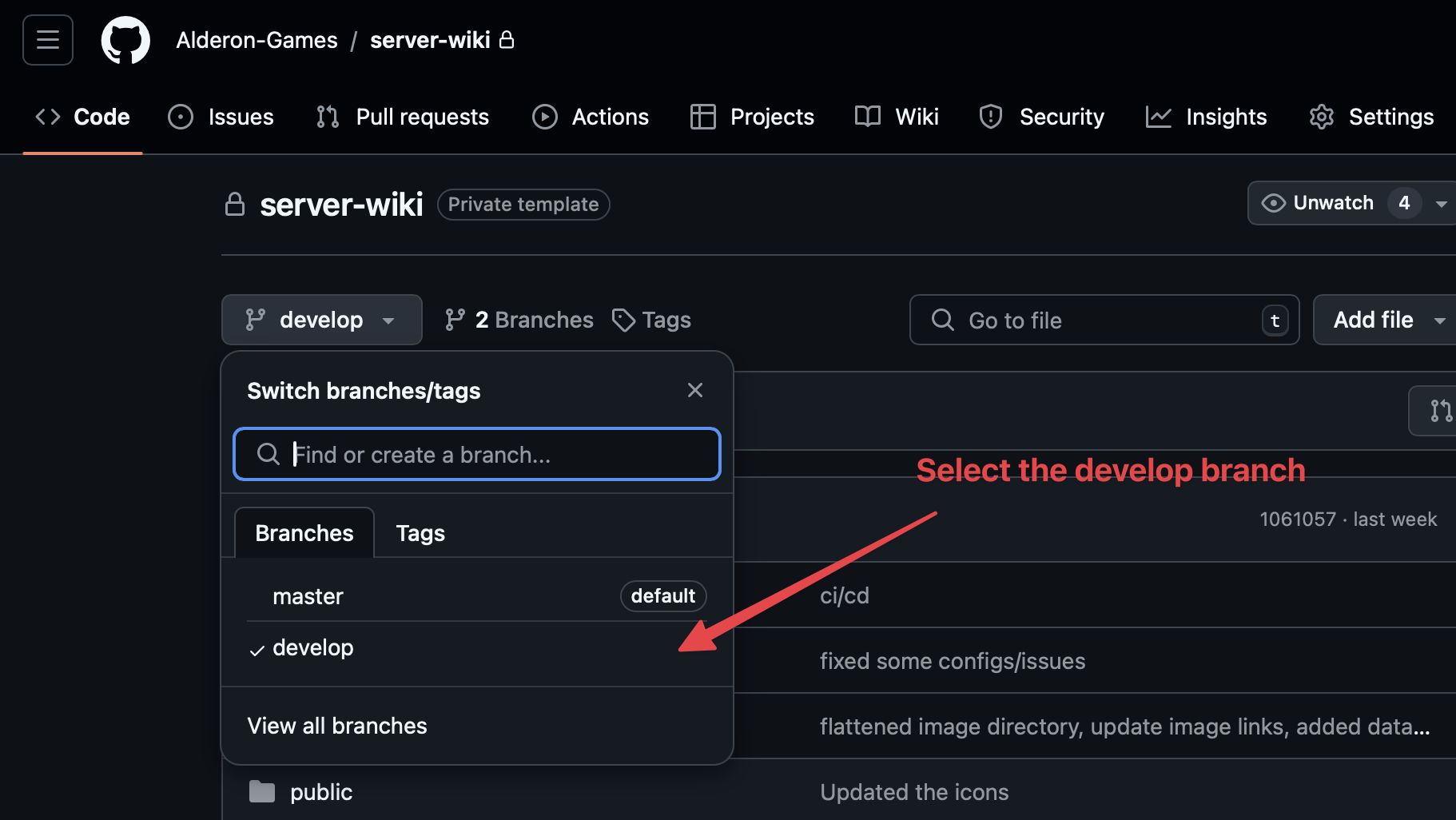
Browse through the directory to find the page you want to edit. For example, if you need to update a guide on server setup, you would navigate to the
guide/server-setup.mdfile.Once you have found the file, click on it to open the page, then click the pencil icon in the top right to enter edit mode.
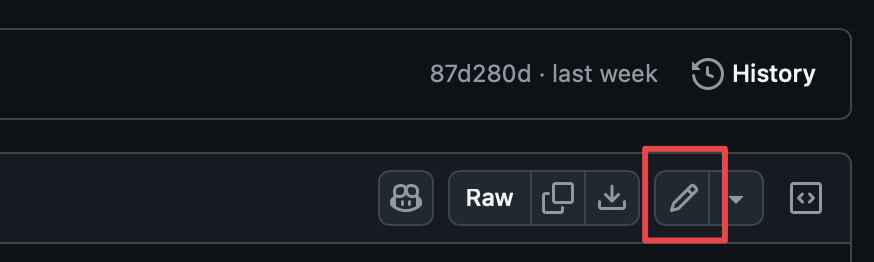
Make your edits in the markdown editor provided by GitHub. You can preview changes using the editor’s preview function. For guidance on markdown syntax, see GitHub’s markdown guide.
If you need to add or update images or other resources, upload them to the
imgsfolder by dragging and dropping files into GitHub.
TIP
Use the appropriate relative paths to refer to images from the imgs folder.
Once you’re satisfied with the changes, click on the
Commit changes...button at the top right of the page.Add a commit message describing the changes, e.g.,
Update server setup guide. You may also add an optional description for more context.
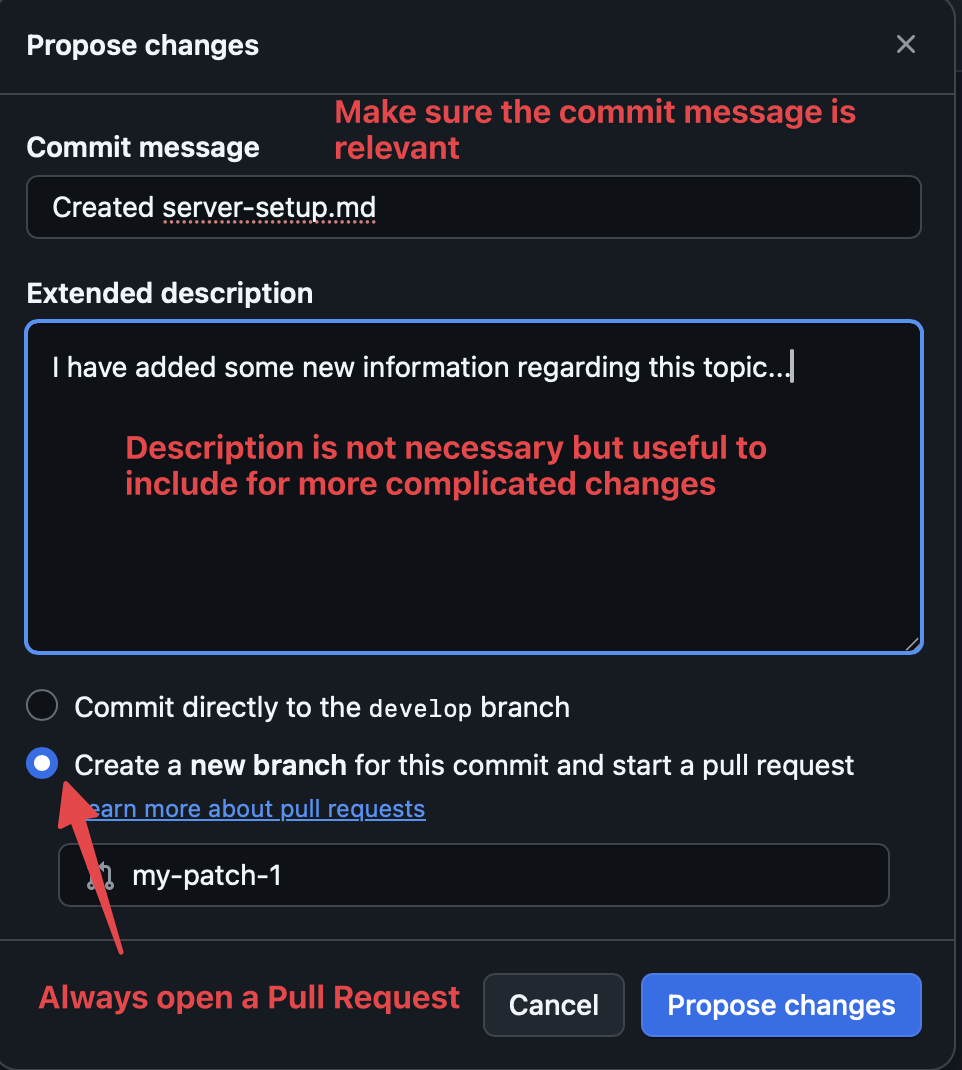
- Select the option to
Create a new branch for this commit and start a pull request. This will create a new branch and open a pull request for your edits.
WARNING
Always create a new branch for changes to keep them separate from the main branch until they are reviewed and merged.
Press the
Propose changesbutton to create the pull request. This opens a new page to review and submit the pull request.Done! You’ve successfully edited a wiki page using the GitHub web interface. Wait for the maintainers to review and merge your changes.
Using VSCode and Git
In order to edit a page using VSCode, you’ll need to have VSCode and Git installed. If you don’t have these installed, download and install them first.
Then, you can follow similar steps to Adding a New Wiki Page to clone the repository and edit the markdown files locally. Make sure to push your changes to GitHub and open a pull request for review.
TIP
The only difference is that you will be editing the file instead of adding or deleting it.